How to Add Games to TikTok LIVE Studio
Add games to TikTok LIVE Studio step by step: game vs window capture, Link Source overlays, game audio, vertical or landscape layout and common fixes.
 By StreamEmber TeamCreator success ·
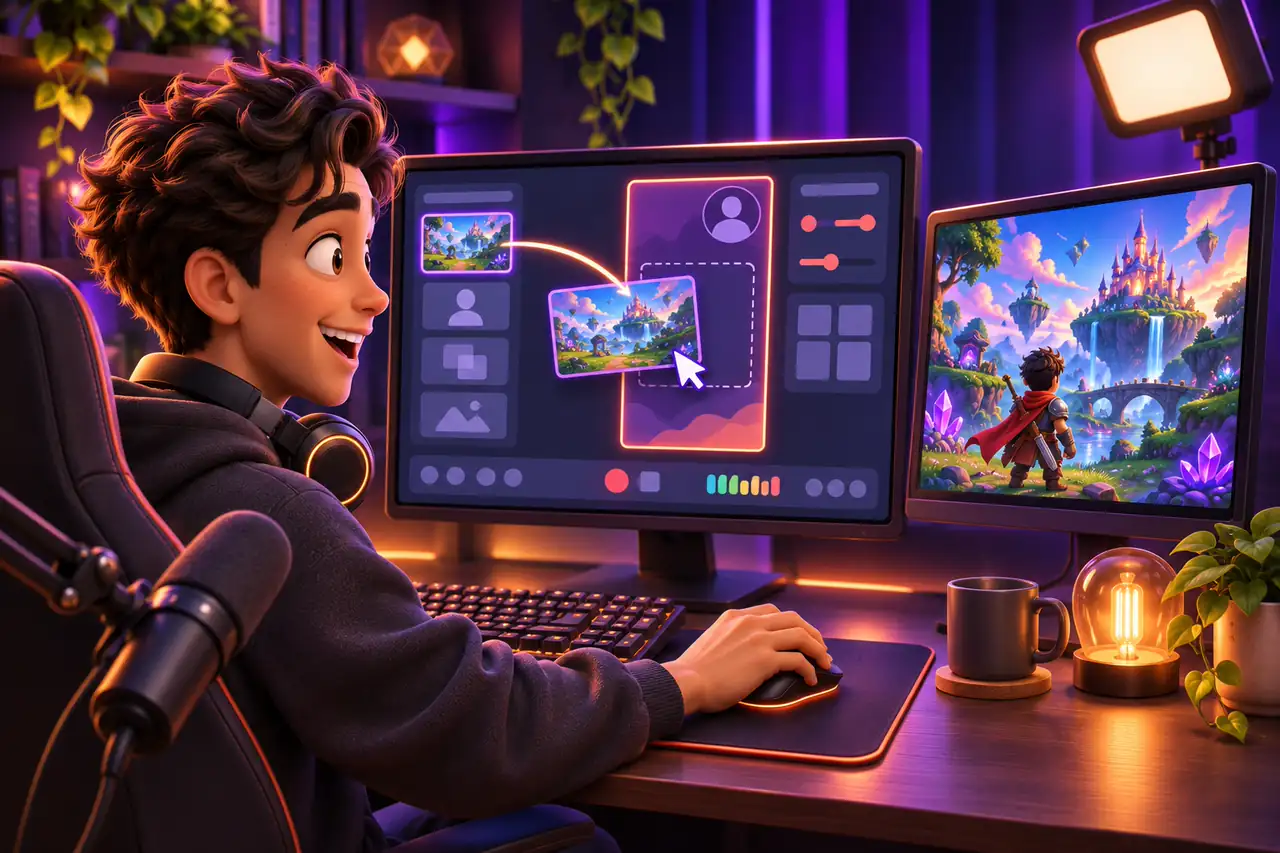
To add a game to TikTok LIVE Studio, start the game, add it to your scene as a game or window capture source, choose a vertical or landscape layout, check the game sound in the audio mixer and press Go LIVE. For a StreamEmber game, also add its overlay as a Link Source so gifts show on screen.
What is TikTok LIVE Studio and who can use it?
LIVE Studio is TikTok's desktop app for going LIVE from a computer. You build scenes from sources such as a camera, a game, a window or a web page and stream them to your TikTok account. Download it only from TikTok's official LIVE Studio page.
You must be 18 or older to go LIVE (TikTok Support). Whether your account can use LIVE Studio is decided by TikTok and can vary by account and region; see how to get TikTok LIVE access.
Game capture vs window capture vs Link Source
There are three ways to bring a game or game element into LIVE Studio. Source names can differ slightly between versions, but the idea is the same.
Which LIVE Studio source should you use?
| Source | Use it for | Watch out for |
|---|---|---|
| Game capture | Full-screen PC games such as GTA 5, Red Dead Redemption 2 or Minecraft | Some games show a black screen; try windowed or borderless mode, or window capture |
| Window capture | Games running in a window, including the StreamEmber game window | The window must stay open, not minimized |
| Screen capture | Anything on one monitor | Shows everything, including notifications; use a clean monitor |
| Link Source (web page) | Overlays: goal bar, top gifters, alerts, event feed | Paste the overlay link from the launcher and set its size |
Step by step
How to add a game to TikTok LIVE Studio
From an empty scene to a game on your LIVE.
- 1
Install LIVE Studio and sign in
Download LIVE Studio from TikTok's official page and sign in with your TikTok account.
- 2
Pick a layout
Choose vertical for phone viewers or landscape for a wide game view. You can change it later.
- 3
Start the game first
Open the game before adding the source so it appears in the list. For a StreamEmber game, start it from the launcher.
- 4
Add a game capture source
Add a game capture source and pick your game. If it stays black, switch the game to windowed or borderless mode, or use window capture.
- 5
Fit and crop
Resize the game to fill the frame and crop black bars. Keep important text large enough to read on a phone.
- 6
Check the audio
Make sure the game sound shows in the audio mixer, then lower it until your voice is clearly louder.
- 7
Add overlays as a Link Source
Copy an overlay link from the StreamEmber launcher, add it as a Link Source and set its width and height.
- 8
Check the preview, then Go LIVE
Watch the preview for a minute: game, sound and overlays should all look right. Then press Go LIVE.
Game audio in TikTok LIVE Studio
Viewers leave quickly when the game drowns out your voice. Keep game sound clearly below your microphone, mute alerts you don't need and wear headphones so the game doesn't echo into your mic. If an overlay plays sounds, check its volume too.
Vertical or landscape layout for game streams
A vertical layout fills a phone screen: put the game in the upper part and leave room for your camera and overlays. Landscape shows more of a wide PC game, and TikTok has announced LIVE in portrait or landscape with a full-screen horizontal view for desktop viewers (TikTok Newsroom). Whichever you pick, check it on your own phone.
Common mistakes when adding games to LIVE Studio
- Black game capture: switch the game to windowed or borderless mode, or use window capture.
- Minimized game window: window capture can't show a minimized window.
- No game sound: check that the game appears in the audio mixer and isn't muted.
- Text too small: zoom or crop the game so menus are readable on a phone.
- Overlay not showing: copy the link again from the launcher; if you created a new link, update it in LIVE Studio.
Add a StreamEmber game and overlay to LIVE Studio
StreamEmber Launcher for Windows installs interactive games and connects them to your TikTok LIVE, so gifts, likes and comments trigger actions in the game. Start the game from the launcher, add its window to LIVE Studio, then add StreamEmber overlays as a Link Source. Our LIVE Studio overlay setup help shows each field.
New to interactive streams? Read your first interactive stream, browse TikTok LIVE games or compare TikTok LIVE Studio vs OBS.
Adding games to LIVE Studio: FAQ
Can you add games to TikTok LIVE Studio?
Yes. Add the game to your scene as a game or window capture source. Interactive game overlays are added as a Link Source.
Why is my game capture black in LIVE Studio?
Some games don't work with game capture. Switch the game to windowed or borderless mode, or use window capture instead.
How do I add a StreamEmber overlay to LIVE Studio?
Copy the overlay link from the StreamEmber launcher, add it in LIVE Studio as a Link Source and set its size. If you create a new link later, update it in LIVE Studio.
Should I use a vertical or landscape layout for games?
Vertical fills a phone screen; landscape shows more of a wide PC game. Test both on your own phone before going LIVE.
Does StreamEmber work on Mac?
Yes. StreamEmber Launcher runs on Windows 10 and 11 (64-bit), macOS and Linux.

Add your first interactive game
Download StreamEmber Launcher for Windows, start a game and add it to LIVE Studio. New accounts get 3 days of Premium free.