How to run a Group LIVE in LIVE Studio
How to run a Group LIVE in TikTok LIVE Studio: account tag, picking members, 1v1 performances, viewer wishes, a show running order and the rules to follow.
 By AmiralFounder, StreamEmber ·
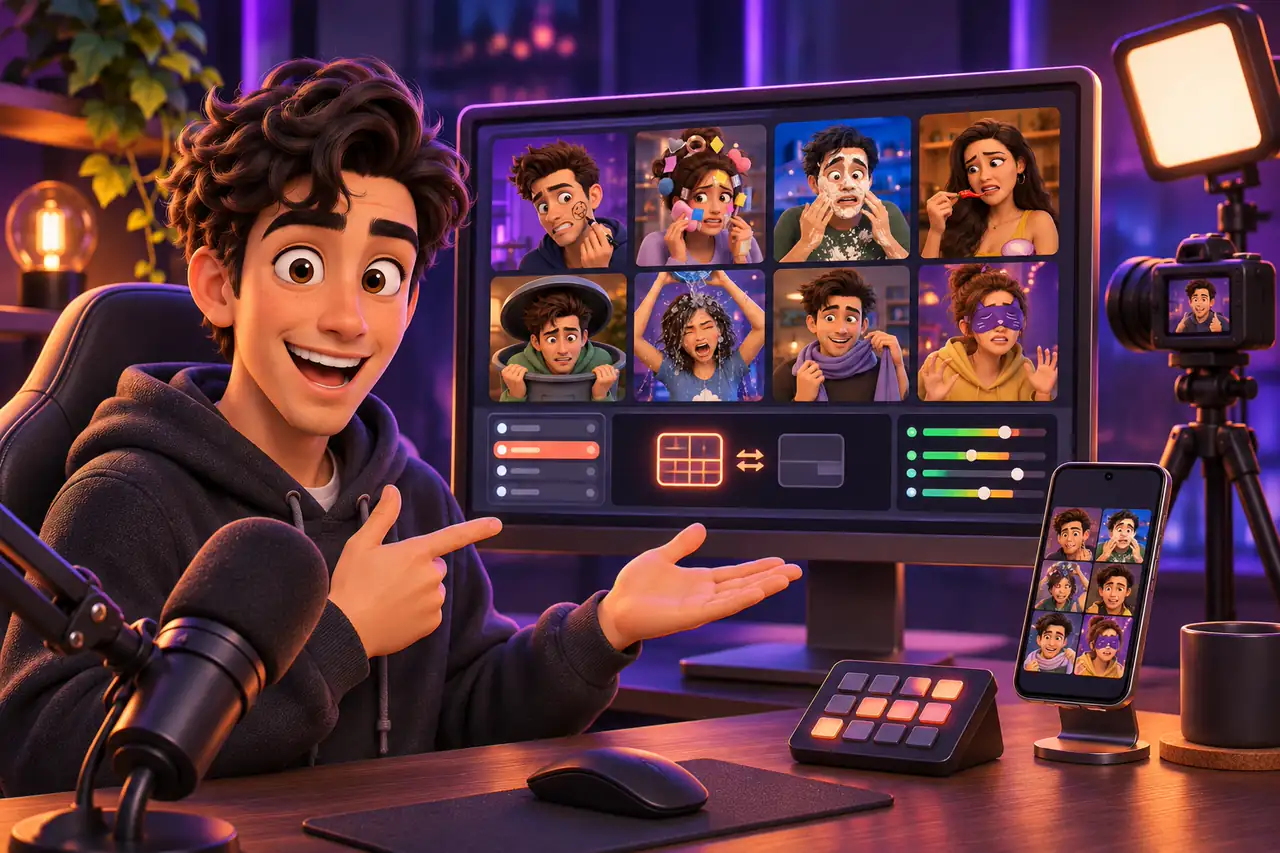
Short answer: Group LIVE is a studio format where three or more creators stream together in one place from a single account, run through LIVE Studio. The account has to be tagged as a Group LIVE account by an agency, and the members must belong to that same agency. Then, in LIVE Studio, you choose who is on stage, go live and use features such as 1v1 performances, member support and viewer wishes.
This guide covers what you need for a Group LIVE in LIVE Studio, how to start one step by step, what each feature does and a running order that works. Streams where everyone joins from their own phone use the multi-guest feature instead. To compare LIVE Studio with OBS, see TikTok LIVE Studio vs OBS for Game Streams. TikTok may update features and limits.
What you need for a Group LIVE
Because Group LIVE needs a space, equipment and team coordination, it takes more preparation than a solo stream. A team usually has a host who leads the stream, creators who perform, and people backstage handling tech and operations. On the technical side, these are the basics:
| Requirement | Details |
|---|---|
| Group LIVE account | The agency tags the account as Group LIVE in its dashboard. Agency official accounts and accounts of agency staff cannot be tagged, nor can banned accounts or accounts that are live at that moment. |
| Members | Creators who have joined the same agency, meet the entry requirements and have their own account linked to the Group LIVE account. Up to 30 members can be added to one account. |
| Members on stage | Up to 12 members can be set as on stage for each session. |
| Software | LIVE Studio installed on a computer and signed in with the Group LIVE account. |
| Studio | A ventilated, sound-treated space big enough for several people, plus camera, lights, mics and a wired internet connection. |
Starting a Group LIVE in LIVE Studio
Screen names may differ slightly by version.
- 1
Set up LIVE Studio
Download LIVE Studio from TikTok's official page and sign in with the Group LIVE account. Set up cameras, mics and your scene.
- 2
Pick members
Press Go LIVE to open the group member panel and choose who will be on stage this session.
- 3
Fill in stream details
Add the LIVE title, the topic of this session and the room description.
- 4
Go live
Press Go LIVE again. On-stage members now appear in the gift panel and can be selected by viewers.
- 5
Manage the stage
During the stream, use Manage group to bring members on or off stage, then confirm.
- 6
Start a 1v1 performance
Use the member match button to pick two members and a duration and start a timed match.
What each feature does
- Member support: viewers pick an on-stage member in the gift panel and send the gift as support for that member, so each member builds their own fan base.
- 1v1 performance: two members face off for a set time while viewers push their favourite ahead. It adds competition and excitement.
- Viewer wishes: 2–6 content options, each linked to a gift, appear at the top of the stream. Viewers make a wish with the matching gift, and the team performs the option that suits them.
- Member scores and analytics: on-stage members are scored by gift value and likes, and after the stream you can replay and review each 1v1 performance.
Limits to know
- Once the stream starts, member accounts cannot send gifts to the Group LIVE account.
- The member list cannot be changed in the agency dashboard while live; manage who is on stage in LIVE Studio.
- You can go live without picking members, but then 1v1 performances are not available.
- After a 1v1 performance starts, Manage group is greyed out, and co-host, matches and multi-guest cannot be used at the same time.
- In vertical mode, multi-guest is not available during a Group LIVE; in landscape and mixed layouts it is.
A Group LIVE running order that works
Times are examples; adjust them to your team and your audience data.
Preparation
Post a short teaser video, check gear and the set, rehearse the opening lines and routine.
Warm-up and introductions
Opening music, welcome viewers and let members introduce themselves; start with an energetic group performance.
Showcase and interaction
Members take turns showing their strengths; take requests, ask questions and use viewer wishes.
1v1s and rounds
Raise the excitement with 1v1 performances and voting rounds while the host manages the pace.
Thanks and announcement
Finish with a group performance, thank everyone and announce the next stream to build anticipation.
Group LIVE in LIVE Studio: frequently asked questions
Can I do Group LIVE without an agency?
Group LIVE features need the account to be tagged by an agency. Without one you can still stream together, but you cannot use features like 1v1 performances and member support.
Can creators from different agencies be in one group?
No. Only creators from the same agency can be linked as members of a Group LIVE account.
Can I run a Group LIVE from a phone?
Group LIVE features are built for LIVE Studio, so you need a computer with LIVE Studio. To stream together from phones, use multi-guest.
How do viewers choose which member to gift?
On-stage members appear in the gift panel; the viewer selects a member and sends the gift.
Can I change who is on stage during the stream?
Yes, with Manage group in LIVE Studio. Once a 1v1 performance starts, the option is temporarily disabled.

Set up your group stream like a pro
Read our LIVE Studio vs OBS comparison, or join our agency to set up your group account.